Showing posts with label IMPACT Reinforcement. Show all posts

Friday, January 22, 2016

StruSoft forum

We are happy to announce the start of StruSoft Forum

The purpose of this forum is to meet other users and share your experience between each other. The forum is moderated by several StruSoft experts and we will be there to help with any problems or questions you may have. 


We created a separate groups for each of our software product: FEM-Design, IMPACT, WIN-Statik, PRE-Stress, VIP-Energy and Dimension, and we invite you all to take an active part in the discussions. 

Forum can be found on: http://www.strusoft.com/forum/ (link can be found on our website under Services tab).


Wednesday, October 31, 2012

IMPACT Reinforcement 12 is here

IMPACT Reinforcement 12.0 is now available on the download page. Version 12 runs on AutoCAD 2013.

Thursday, August 9, 2012

FEM-Design and IMPACT YouTube channels

We established two YouTube channels  FEMDesignStruSoft and IMPACTStruSoft, where we upload video tutorials concerning FEM-Design and IMPACT software.


Wednesday, April 27, 2011

Smart IMPACT

Access your shop drawings on iPad, iPhone, iPod or Android Mobile with the AutoCAD WS free app.

Friday, November 26, 2010

IMPACT 10.1

IMPACT 10.1 in both 64 and 32 bit versions are now available on the download page.

Thursday, May 27, 2010

Friday, April 23, 2010

IMPACT 10 is here


IMPACT 10 suite

IMPACT Server
Installs IMPACT BIM Server on top of Microsoft SQL Server or Ingres Database.

IMPACT Project Manager
Easy management and reporting of your projects from early design and site planning to final delivery.
Links to ERP systems such as ELiPLAN and Betsy.


IMPACT Precast
Efficient 3D modeling of concrete structures:
  • Columns
  • Beams (inducing Prestressed and sloped I Shape...)
  • Walls (including Sandwich and Double Wall...)
  • Slabs (including Hollow Core and Form Slab...)
  • User Defined (Linked)
Automatic drawing generation.
Links to Analysis & Design systems such as FEM-Design and WIN-Statik.

IMPACT Reinforcement
Automatic or manual 3D modeling of Reinforcement (Mesh, Bar, Stirrup, Bamtec...).
Links to Fabrication systems such as Unitechnik, LEIT2000, BVBS and Q-spec.


Monday, April 19, 2010

Tips and tricks - Annotation scale


Did you know that IMPACT Reinforcement can use Annotation scale instead of ltscale for scaling of endmarks and texts?

AutoCAD 2008 introduc
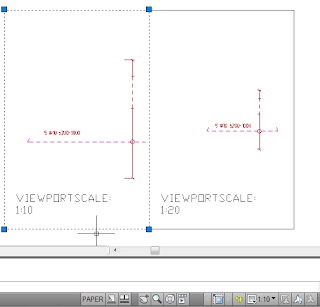
ed a new method to simplify scaling. Annotation scale is meant to replace working with the variables ltscale and psltscale and can be found on the bottom right-hand side of the AutoCAD window. On a layout, when a viewport is selected, a similar control for viewport scales are shown.

The recommended settings when using this feature is msltscale=1, psltscale=1, ltscale=1.

Using these settings will also trigger IMPACT Reinforcement to scale texts, endmarks and distribution line marks accordingly.

Note: When opening a drawing created in AutoCAD 2007 or earlier, msltscale will automatically be set to 0.

The template files that come with the IMPACT Reinforcement installation have been prepared with msltscale=1. If you do not wish to use annotation scale when creating new drawings, we recommend that you create a new copy of desired dwt-file and change msltscale to 0 in that.

Example:

1. Create a new drawing. Make sure that msltscale=1, ltscale=1 and psltscale=1. Annotation scale will be 1:1 by default.
2. Draw a bar. Text and endmarks will be very small.
3. Now toggle the annotation scale in modelspace to 1:10. Texts and marks will be scaled up automatically.
4. Now change to a layout tab. Create a second copy of the viewport.
5.
Change the viewport scales by selecting the frame of a viewport and toggling the list of scales at the bottom of the screen. Set the first viewport to 1:10 and the second to 1:20.
The viewports will automatically zoom to the correct scales. If needed, double-click in the viewport to pan the view so that the reinforcement object is visible.
6. To initiate scaling of the reinforcement objects, run the Regen All command from the view menu, or type regenall and hit enter. (This is not needed for a plot to be correct).
7. Now the appearance of the objects will be correct.

Tuesday, January 12, 2010

Beta Programs

Did you know that all users with maintenance agreement can apply to participate in the StruSoft Beta Programs?
  • Learn about the new features
  • Prepare your organization for the upgrade
  • Contribute to the development
Current Beta Programs are:
  • WIN-Statik 6.1
  • FEM-Design 9.0
  • IMPACT 10.0
Please apply by sending an email to info@strusoft.com with your name, company and address. Don't forget to write which Beta Program you are interested in.

Monday, December 21, 2009

2009

In May we released IMPACT 9.0, the new generation of precast modeling and detailing tools. The new database will be a robust foundation for the continuous development of IMPACT. The release also included among others new drawing layout tools, improved hollow core element types and several production features like; reinforcement collision checks, mass and size rules for forms and reinforcement, and much more.

In June we released FEM-Design 8.04 with the new Revit FEM-Design Add-In 1.0.

The development of the next IMPACT version 10 started already in April and in August we could test construction site tools like crane-, erection- and transportation (stack) planning. IMPACT Reinforcement 10.0 was released in September and IMPACT Precast 10.0 will be released during the beginning of 2010. IMPACT 10.0 will have more planning features and new tools for all kinds of columns and beams.
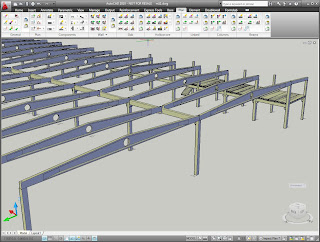


IMPACT 10.0 is compatible with AutoCAD 2010 and will also come with new Revit IMPACT Add-Ins. SQL Server 2008 will be supported.

During the whole year we have been working with FEM-Design 9.0, with a completely new graphical engine, much faster calculation and automatic design. FEM-Design 9.0 will be released during the beginning of 2010.


We look forward to make many more good and integrated releases in 2010 and we wish you all

Merry Christmas and Happy New Year


The current releases are:

FEM-Design 8.04.012
Revit FEM-Design Add-In 1.1.002
IMPACT Precast 9.0.017 and Reinforcement 4.1.003
IMPACT Reinforcement 10.0.000
WIN-Statik Concrete Prestressed 6.0.001

Monday, October 26, 2009

Monday, August 31, 2009

IMPACT Reinforcement - Revit workflow

So you want to use IMPACT Reinforcement in your Revit projects? With the right settings it's easy.


In Revit, export a dwg-file for each plan that you want to reinforce.


Create a new AutoCAD-drawing and xref the Revit export into it, making sure that the instertion point is 0,0.

Start reinforcing. Here I created a simple reinforcement plan using the palettes surface reinforcement tools.

Save the drawing and go back to Revit.


Back in the plan view, run the link CAD command. Import CAD can also be used, but this will not allow you to update the drawing to reflect changes made in the dwg-file.

Make sure that Positioning is set to Auto - Origin to origin so that the drawings line up correctly.


If you have used the same scales in AutoCAD as you have set in Revit, dashed lines should appear the same. However, as you can see in the picture to the left, I have lost the diameter symbol for the rebar text. This has to do with Revit using standard Windows fonts while AutoCAD uses SHX-files for text.


In your Revit installation folder ...\Program Files\Autodesk Revit Structure 2010\Data, there is a file named shxfontmap.txt. Open this in a texteditor. Here you can see what fonts AutoCAD shx-files are replaced by when imported into Revit. To add a font, simply write on a new row the name of your shx-file followed by a tab and the name of the font you wish to use in Revit. Depending on the font used, it may require some testing before the texts look ok.


In this case I used "iso.shx isocpeur". The diameter symbol looks ok, but a linebreak has appearedd in some of the texts.


In this picture I used "iso.shx isocp", which seems to be working for me.


Edit: It has come to my attention that the isocp font is too thin for printing properly. This is probably because it is not a proper TrueType font. Instead I have found that using Arial Unicode MS has given me good results. Diameter symbols show up OK and there dont seem to be any incorrect carriage returns.

Now when I have made any changes to the reinforcement, I can simply reload the CAD link using the manage links command.

In 3D view I can even see the leg of the L-shaped rebar connecting the slab and walls.


Happy reinforcing!